
How to Use Sockscap
Quick Links
My IP Hide
If you only need to access blocked sites, please try My IP Hide. Here is the comparison between My IP Hide and Socks Proxy Checker.
Affiliate Program
Earn money when a visitor comes from your website buys our product or service. You can get 30% commission on sales. Start to earn now!Socks Partner
Sockscap Makes Programs Support Socks Proxy
If the Internet program you are using does not have a socks proxy option you can use Sockscap to make it support socks proxy. Here is a tutorial showing how to use Sockscap.
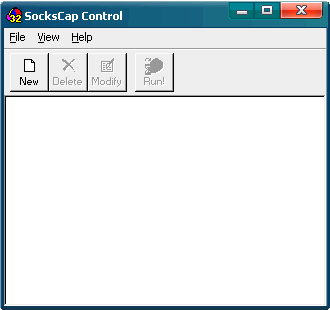
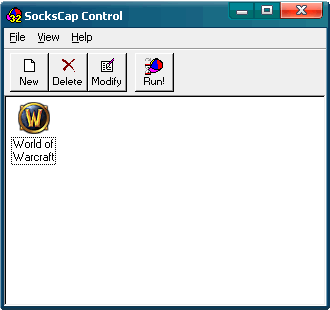
1) Please download Sockscap here and then run sockscap32.exe. You can see this main window of Sockscap:
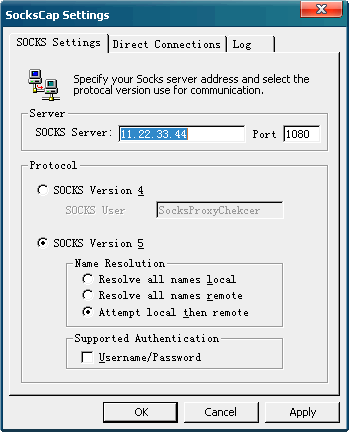
2) Please click the Sockscap menu FILE -> SETTINGS to set the socks proxy. Input the socks proxy checked by Socks Proxy Checker into this dialog and tick the version of the socks proxy.
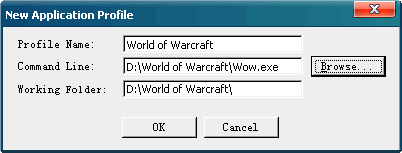
3) Click OK to save the settings, then click the menu FILE -> NEW -> BROWSE to add a program. Sockscap will make that program use the socks proxy. For demonstration, I add the game program "World of Warcraft" to Sockscap.
4) After adding to Sockscap, please double click the icon in Sockscap to launch the program by Sockscap. Now the program are using the socks proxy (which is set in Sockscap in step 2) to connect to the server.
Notes for Sockscap:
a) After changing the socks proxy in Sockscap, you have to close the program (World of Warcraft here) and then run it again to make it use the new socks proxy.
b) In Windows Vista, you should give Administrator right to Sockscap. To do that, you need to go to your Sockscap install directory (e.g. C:\Program Files\SockscapV2). Right Click on your sc32 or sc32.exe. Then click PROPERTIES then under the COMPATIBILITY tab at the bottom, tick "Run this Program as an Administrator" then click APPLY.
c) Please set the program to use direct connection if you use Sockscap to launch it.

